


Set up a software token on your PC
For Windows, we recommend using the app "2fast".
For macOS, we recommend the app "Step Two".
You may also use any TOTP app of your choice.
Alternative: Set up a software token on a smartphone
Tutorials:
-
Step 1
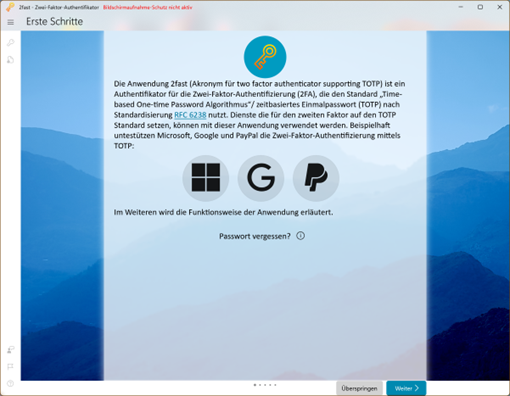
Download the app "2fast – Two Factor Authenticator" from the Microsoft Store using the following link and install it by running the installation file:
Microsoft Store (2fast)
Afterwards, open the app if it does not start automatically. We recommend carefully reading the setup guide displayed in the app to understand how it works. Click "Next" and, on the last page, click "Finish".
Step 2
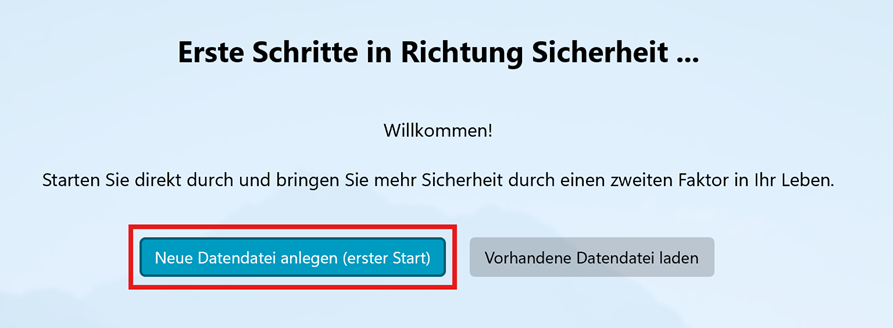
First, you need to create a new data file. To do so, click "Create New Data File".
Step 3
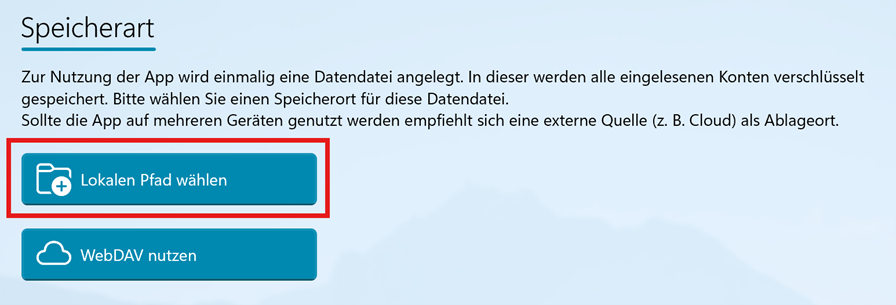
Then click "Choose Local Path".
Step 4
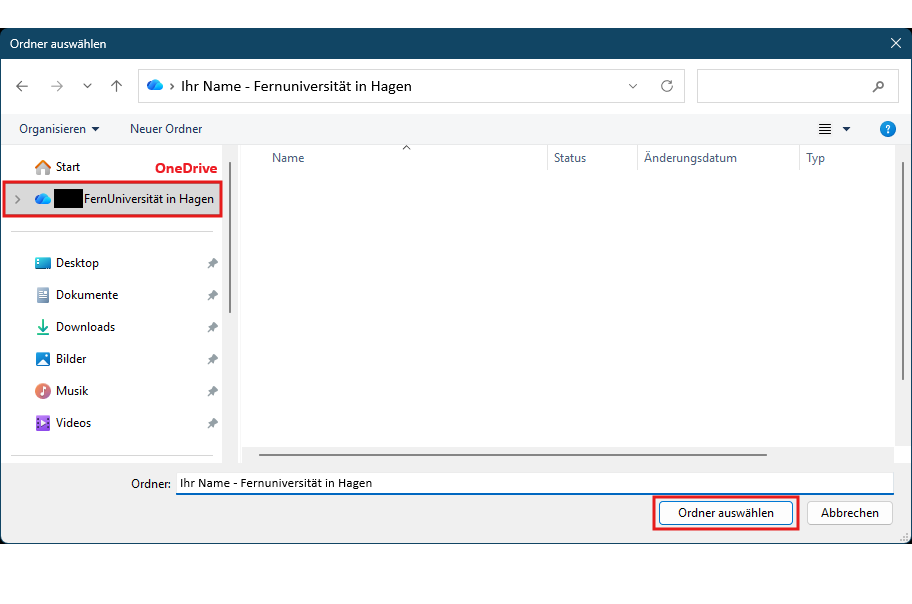
In the window that opens, select a folder where the data file will be stored.
Important: We recommend choosing a folder in your OneDrive or a folder on a network drive that only you can access. This ensures that your data file remains available even if you need to replace your PC due to a hardware failure.
Note: You can also create a new folder in this window by right-clicking and selecting New > Folder.
Step 5
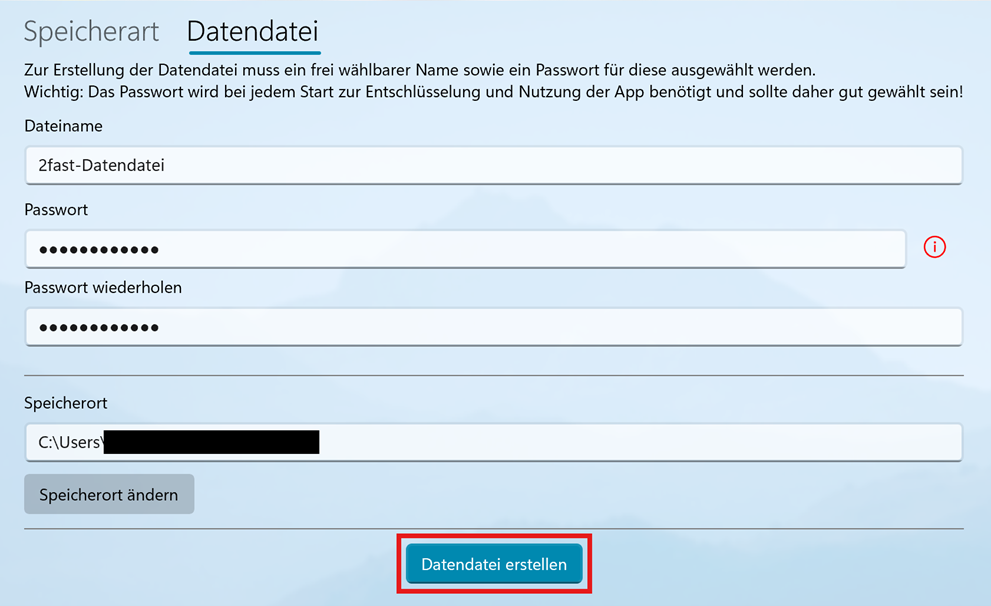
Once you have selected a folder, the next window will open. Enter a name for the data file, for example "2fast Data File". Then create a secure password and enter it again in the confirmation field.
Afterwards, click "Create Data File".
Important: This password must be entered every time you start the app.
Step 6
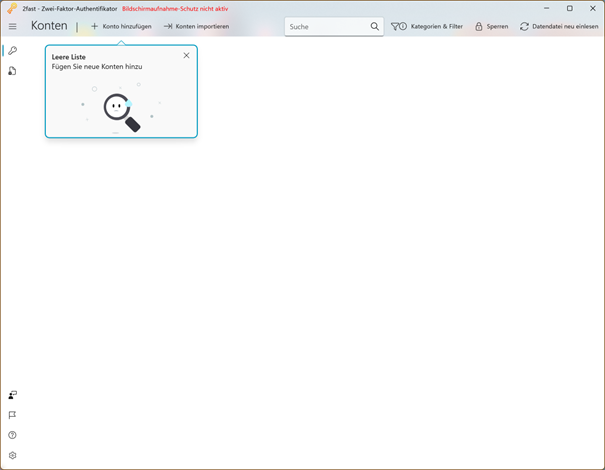
The initial setup of 2fast is now complete.
The following instructions explain how to request your software token and add it to 2fast.
Step 7
Open the Token Management page.
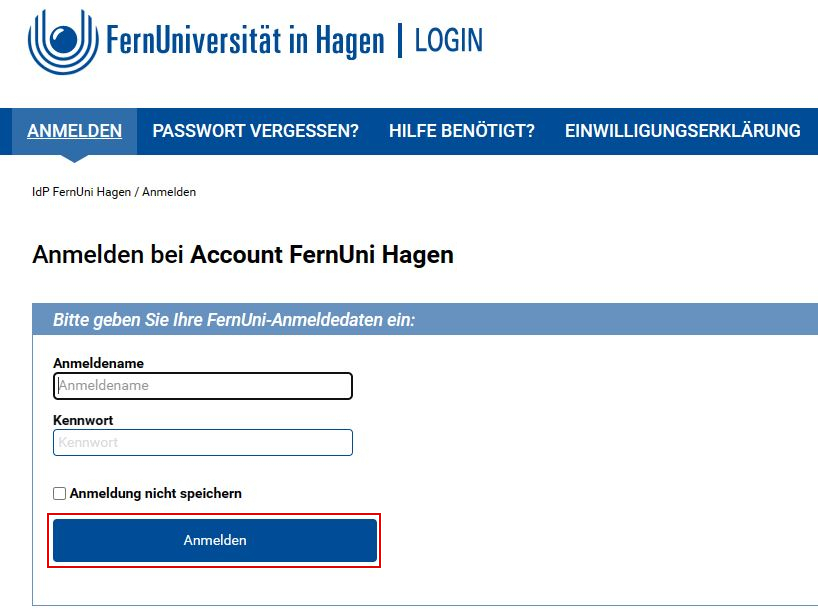
You will be redirected to FernUniversität's SSO service (login.fernuni-hagen.de) if you are not already signed in.
Enter your username and password and click "Sign In".
Step 8
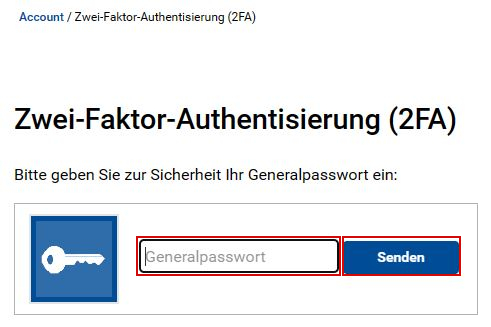
For security reasons, enter your "master password".
If you have forgotten your master password, you must first request a new master password.
Step 9
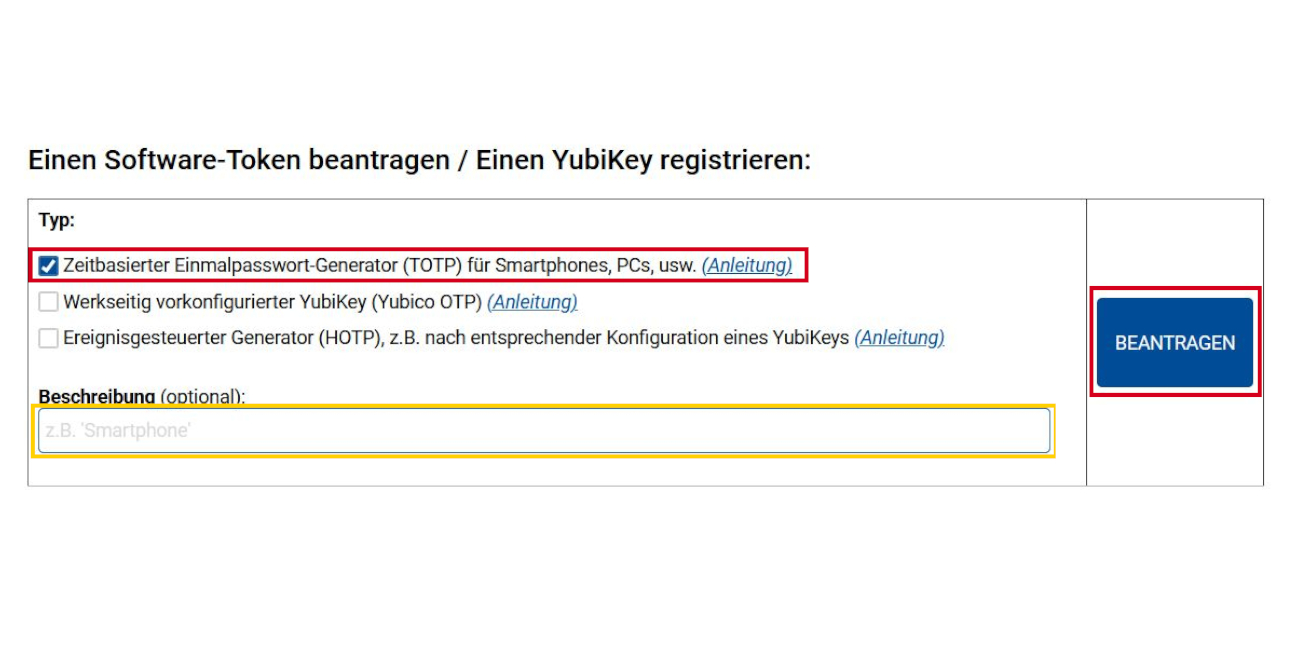
Under "Request a Software Token", select the option "Time-based One-Time Password Generator (TOTP) for smartphones, PCs, etc.".
Optionally, you may enter a short description, for example "PC".
Then click "REQUEST".
Step 10
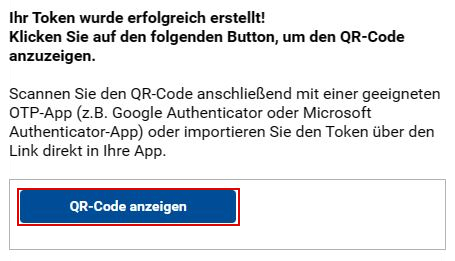
Your software token will now be generated and registered in the system.
Click the "Show QR Code" button.
Step 11
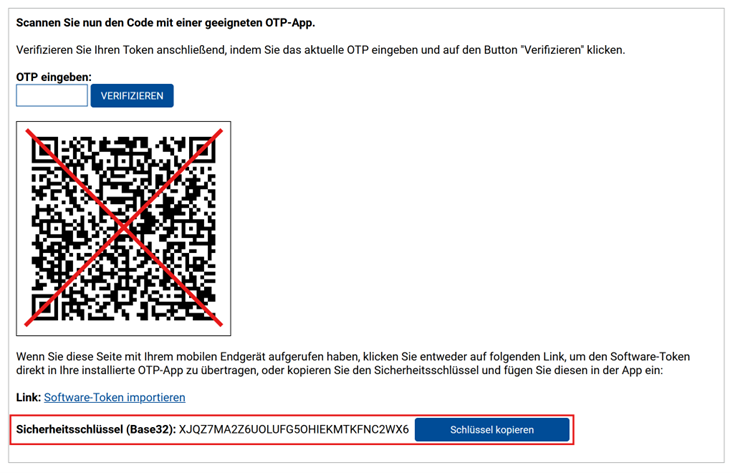
Copy the displayed security key and open 2fast.
Step 12
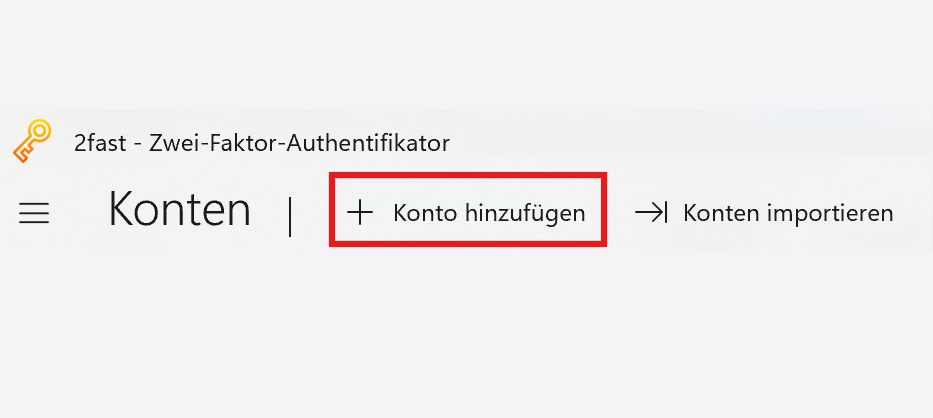
In 2fast, click "Add Account" or the plus icon if this text is not displayed.
Step 13
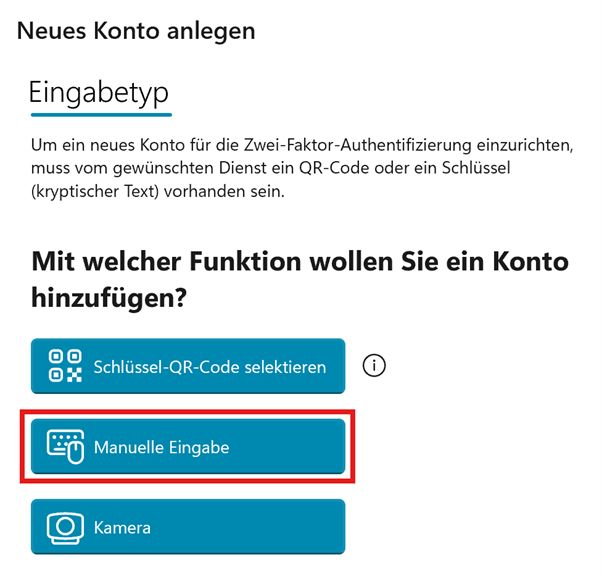
Select "Manual Entry".
Note: You can also select "Select Key QR Code" to scan the required information directly from your browser. In the window that opens afterwards, which displays all currently running applications, select your browser. However, depending on the browser used, we cannot guarantee that this method will always work.
Step 14
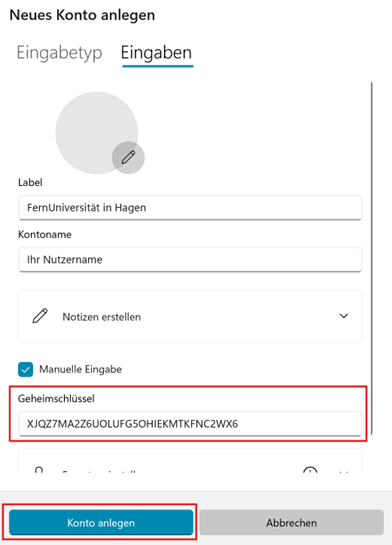
In the Label field, enter a name such as "FernUniversität in Hagen". This name will be displayed in 2fast. For the account name, we recommend using your username. It will be displayed in addition to the label and helps distinguish between multiple accounts.
Copy the security key from Step 11 into the "Secret Key" field.
Then click "Create Account".

Step 15
Your software token is now stored in 2fast.
You can now copy your current one-time password (OTP) using the corresponding button whenever needed.
Step 16
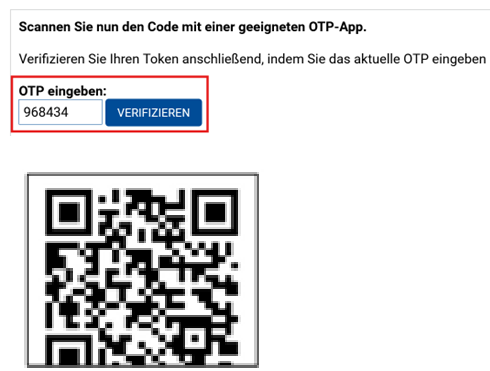
Before you can use your software token, it must be verified.
Enter the current one-time password (OTP) into the text field above the QR code and click "VERIFY".
Your software token is now activated and ready to use. -
Step 1
Install the "Step Two" app using the following link from the App Store:
App Store (Step Two)
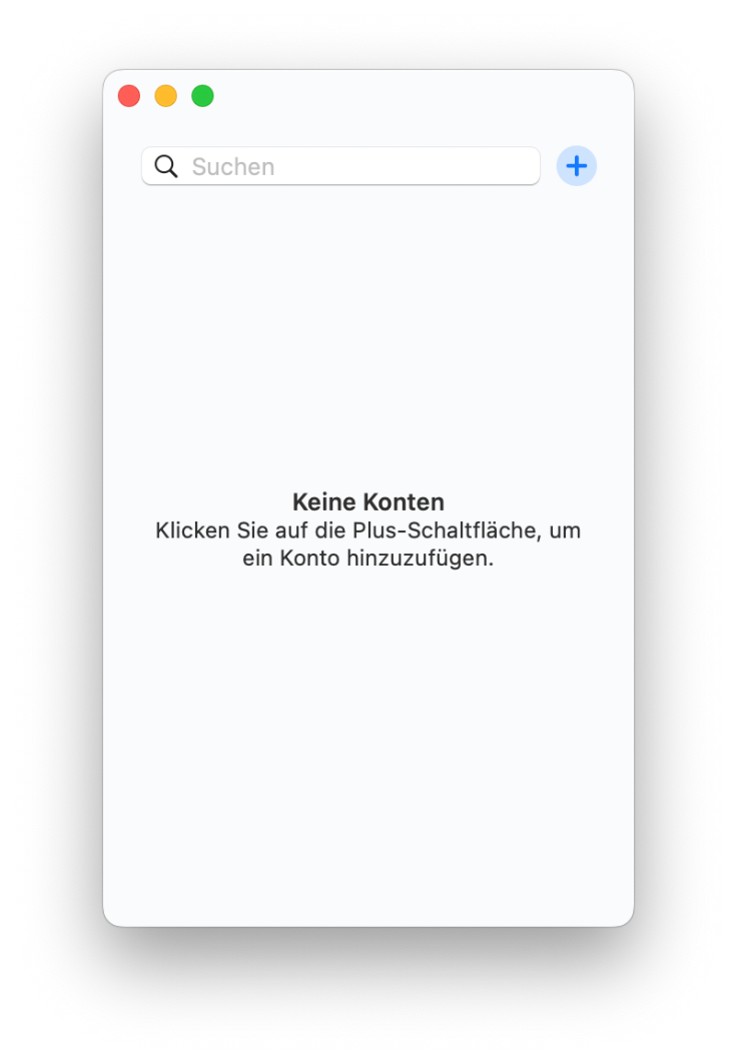
Once installed, open the app if it does not start automatically. The following steps will guide you through requesting a software token and adding it to "Step Two".
Step 2
Open the Token Management page.
If you are not already signed in, you will be redirected to the FernUni SSO service (login.fernuni-hagen.de).
Enter your username and password, then click "Sign in".
Step 3
For security purposes, enter your "master password".
If you have forgotten your master password, you must first request a new master password.
Step 4
Under "Request a software token", select "Time-based one-time password generator (TOTP) for smartphones, PCs, etc.".
You can optionally enter a short description, such as "PC".
Then click "REQUEST".
Step 5
Your software token will now be generated and registered in the system.
Click the "Show QR Code" button.
Step 6
Copy the displayed security key and open Step Two.
Step 7
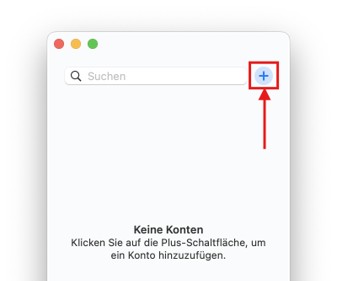
In Step Two, click the plus icon to add a new account.
Step 8
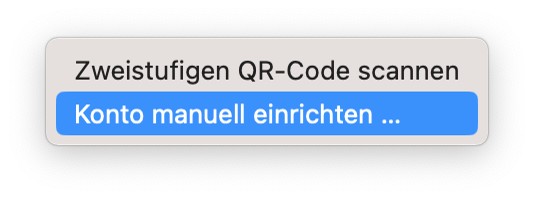
Select "Set up account manually ...".
Step 9
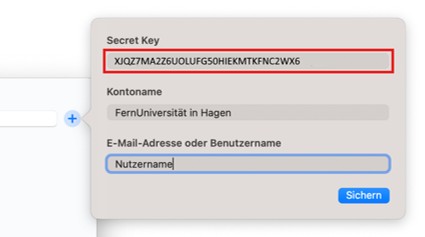
Enter, for example, "FernUniversität in Hagen" as the account name. This name will be used to identify the account in Step Two. For the email address or username, we recommend entering your username so that you can distinguish this account from other accounts.
Copy the security key from Step 6 into the "Secret Key" field.
Finally, click "Save".
Step 10
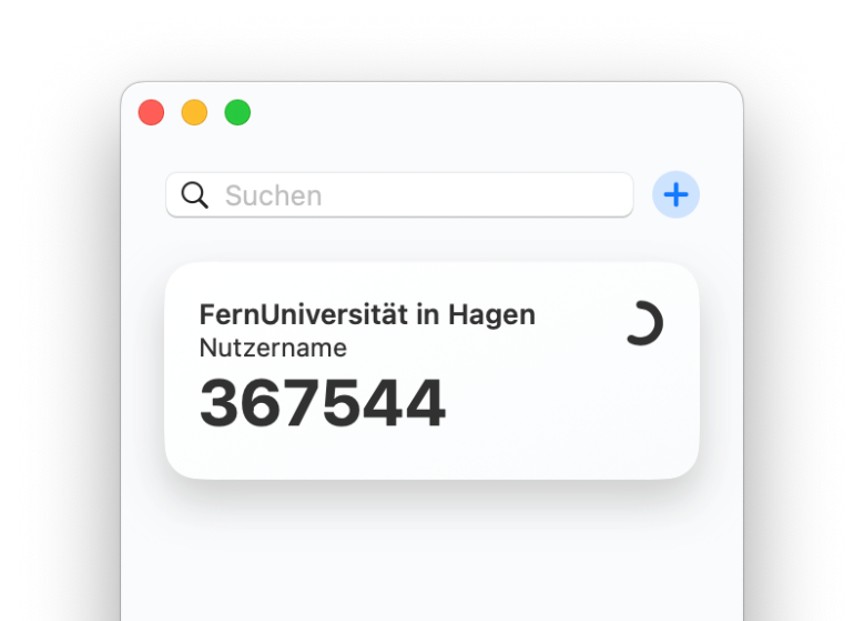
Your software token has now been added to Step Two. The one-time password changes every 30 seconds. You can copy the current code by clicking on it.
Step 11
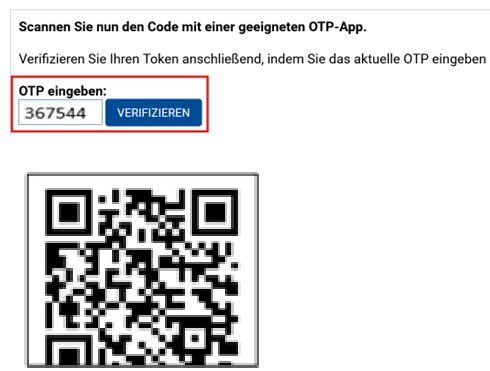
Before you can use your software token, you must verify it.
Enter the current one-time password (OTP) in the text field above the QR code and click "VERIFY".
Your software token is now activated and ready to use.

